
Search
Search connects files, tags, full-text content, custom file metadata, image metadata, OCR results and AI capabilities in BabelBird Enterprise Drive. Users can combine file names, body text, descriptions, tags, uploaders, time ranges, file types, sizes, versions and metadata. Results are returned only within the user’s permission scope.
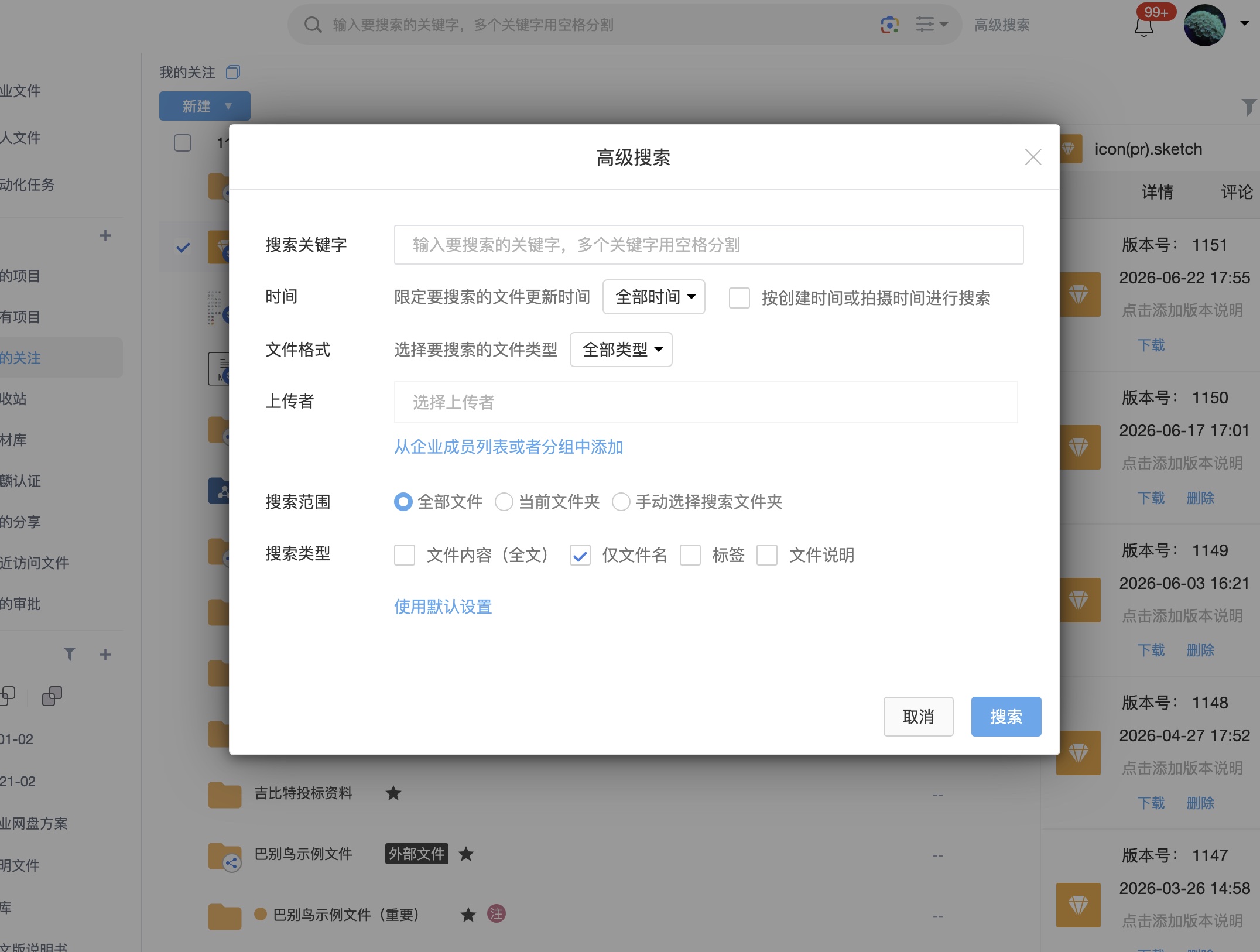
Search Scope
| Scope | Description | Use cases |
|---|---|---|
| File name | Match file or folder names | Quickly locate known files |
| Full text | Search indexed Office, PDF and text content | Contracts, policies, proposals and reports |
| Tags and descriptions | Search enterprise tags, user tags and file descriptions | Cross-folder classification and material lookup |
| Custom file metadata | Filter by administrator-defined fields and values | Document stage, publication status, contract type and business classification |
| Comments and review content | Find content related to discussions, annotations and review opinions | Design review, drawing markup and contract review |
| Image metadata | Filter by shooting time, camera data, dimensions, DPI and more | Galleries, material libraries, photo delivery and product images |
| OCR results | Search text extracted from images, scans and optional OCR documents | Screenshots, certificates, scanned PDFs and invoices |
Advanced Search And Filtering
Advanced search is useful when results are numerous or conditions are complex. Users can enter a keyword first and then narrow results by file type, uploader, time range, size, version, tags, descriptions, search scope and image metadata.
Common uses include:
- Search a contract number inside project files and limit the upload date.
- Find images in a material library with specific tags and required dimensions.
- Search a keyword in department files and only show PDF or Office documents.
- Locate a specific submission by uploader and time range.
- Filter images by shooting date, camera model or resolution.
OCR Search
BabelBird supports search based on OCR recognition results. Text inside images, scanned materials, and optional private-cloud OCR for image-based PDFs and embedded images in Office documents can participate in search once configured.
OCR search is suitable for:
- Screenshots, posters, certificates, invoices and scanned images.
- Image-based PDF documents.
- Text in images embedded in Word, Excel and PowerPoint files.
- Multilingual or mixed-language images.
Image Metadata Search
Image metadata helps users narrow candidates in large image collections. Available fields depend on image format, capture device and system parsing results. Common fields include shooting time, camera brand, camera model, lens model, width, height, resolution, DPI/DPCM and file size.

Image metadata is often used together with material libraries, waterfall view, tags, batch rename and AI image search. See Image Metadata.
Custom File Metadata Filtering
Users can switch to Search Custom Metadata Only, select an enterprise-defined field and value, and filter matching files across folders. See Custom File Metadata for field definition, file assignment and filtering steps.
Permission Boundaries
Search results do not bypass the permission system. Users only see files they are authorized to access. Permission checks include:
- Personal, department, project and enterprise file-space permissions.
- File access control and custom file permissions.
- Sharing permissions, external collaboration permissions and expiry.
- Encrypted folder passwords.
- Preview-only, download restriction, sharing restriction and other security policies.
If a user lacks access, the system does not expose the file even when a keyword matches. Zhichao AI, OCR search, AI image search and knowledge-base Q&A should follow the same permission boundary.
Improving Search Quality
- Use standardized enterprise tags and maintain department or project tag rules.
- Add descriptions, owners, project numbers or customer information in important file details.
- Enable OCR for images, scans and invoices so text becomes searchable.
- Preserve useful image metadata for material libraries and project photos, then browse with waterfall view.
- Batch rename historical files before intake to reduce meaningless names.
- Combine watermarks, sensitive content recognition, access logs and sharing approval for sensitive files.